15 Minimalist Black Wallpapers for AMOLED Phones and 4K Desktops
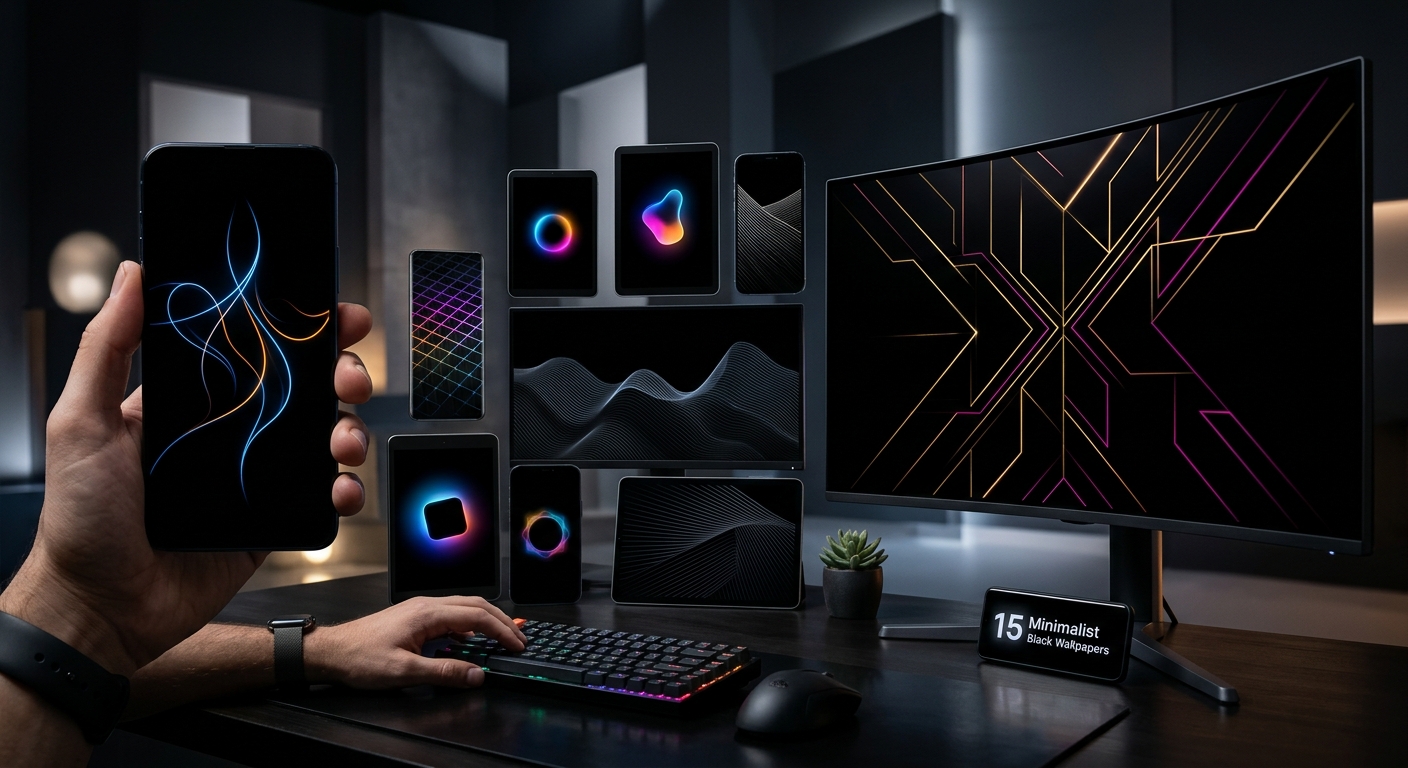
Your wallpaper should give your screen a mood without fighting every icon on it. A tiny anime silhouette. A distant mountain ridge. One faint gaming symbol against deep black. These small details can make a phone feel personal while leaving room for the apps you actually use. This roundup covers 15 minimalist black wallpaper styles, with portrait mobile resolution suggestions and 3840 × 2160 desktop callouts. Pick a favourite for your lock screen, then try a quieter version behind your home screen icons.
Your Dark Wallpaper Shortlist
- Choose small subjects with generous black space around your icons.
- Match portrait artwork to your phone and landscape artwork to your desktop.
- Try plain black if every visible detail feels distracting.
Choose a Canvas That Fits Your Screen
A wallpaper can look sharp in a preview and still crop awkwardly after you apply it. Phones need tall compositions. A desktop needs room across the width. Before saving an image, check its dimensions and imagine where your clock, camera cutout, widgets, and shortcuts will sit.
For this roundup, the mobile sizes are starting points for choosing artwork. Your phone may use a different native resolution or aspect ratio. Follow its screen dimensions when you can. For a standard 4K desktop, look for a genuine 3840 × 2160 image. Stretching a smaller file will not add missing detail.
Wallpaper Sizes for Different Screen Layouts
| Screen Layout | Resolution to Consider | Composition That Fits |
|---|---|---|
| Tall mobile portrait | 1080 × 2400 | A small subject below the clock with clear space above. |
| Higher-resolution mobile portrait | 1440 × 3200 | Fine outlines with enough margin for cropping. |
| Standard 4K desktop | 3840 × 2160 | A wide scene with empty space behind desktop shortcuts. |
15 Black Wallpaper Styles Worth Making Room For
These picks move from anime and gaming details to a completely empty canvas, then into monochrome scenery. Treat them as visual directions when choosing an image. A strong match should feel balanced on your actual screen, even after the wallpaper picker crops it.
-
Small Anime Swordsman Silhouette
A lone swordsman near the bottom of a black frame gives you that tense, waiting-for-the-next-scene feeling. Keep the figure small. A thin grey edge along the sword or shoulders is enough to separate the character from the background. Skip floating particles if you want the cleanest finish.
Resolution callout: Choose 1080 × 2400 for mobile portrait or 3840 × 2160 for desktop. On a wide screen, place the figure slightly right of centre to leave space for shortcuts.
-
Anime Eyes in the Darkness
Two narrow eyes can carry an entire wallpaper. Look for restrained white or grey highlights with the face disappearing into black. The appeal comes from how little you can see. Large glowing eyes feel more intense, while a smaller pair leaves your screen calmer.
Resolution callout: Try 1440 × 3200 for mobile portrait and 3840 × 2160 for desktop. Position the eyes below your lock screen clock so neither detail competes for attention.
-
Rooftop Anime Figure
A seated figure on a rooftop edge adds a little story without filling the screen. Keep the building almost invisible, with one fine line marking its outline. A tiny moon can work, but the figure should remain the main detail. This style suits anyone who likes quiet anime scenes between the big action moments.
Resolution callout: Use 1080 × 2400 in portrait or 3840 × 2160 in landscape. Keep the rooftop low enough that widgets sit above it.
-
Single Controller Outline
A small controller drawn with a thin grey line makes a neat gaming wallpaper. It feels personal without turning your home screen into a game menu. Choose a simple shape with minimal button detail. A large, bright outline can become tiring behind app labels.
Resolution callout: Look for 1080 × 2400 for mobile portrait or 3840 × 2160 for desktop. A corner placement works especially nicely when your icons occupy the opposite side.
-
Tiny Pixel Sword
A pixel sword gives a black background just enough character. Keep it upright or tilted slightly, with a muted silver blade. Avoid a thick glow around every pixel. The small blocky shape already gives the design its personality, whether you prefer building games or old-school adventures.
Resolution callout: Choose 1440 × 3200 for mobile portrait or 3840 × 2160 for desktop. Check that the pixel edges look deliberate and crisp at the size you will use.
-
Quiet Racing Track Outline
A slim circuit outline suits a gaming setup with understated lighting. Pale grey against black keeps the shape visible without making it shout. Leave out lap times, sponsor graphics, and extra lettering. The track itself gives racing fans something familiar to recognise each time they open their screen.
Resolution callout: Try 1080 × 2400 for mobile portrait or 3840 × 2160 for desktop. Keep the track centred within a generous margin so its shape survives cropping.
-
Dark Helmet Profile
A futuristic helmet shown from the side adds a stronger gaming mood. Most of the helmet should fade into black, leaving a narrow rim and a faint visor. Choose a design with one clear outline instead of dozens of small mechanical parts. It should still read clearly at arm's length.
Resolution callout: Use 1440 × 3200 for mobile portrait or 3840 × 2160 for desktop. Let the helmet occupy the lower third on a phone.
-
Completely Black Background
No subject, no texture, no hidden gradient. A completely black wallpaper gives your clock, icons, and notifications all the attention. It also makes a useful home screen partner for a more detailed anime lock screen. You still get your favourite character when you wake the phone, followed by a quieter layout after opening it.
Open a full-screen black screen preview to see how an empty background feels before choosing your wallpaper. For this option, look for solid #000000 rather than a very dark grey image.
Resolution callout: Save a plain black image at your phone's native portrait dimensions, or choose 3840 × 2160 for a standard 4K desktop.
-
Thin Crescent Moon
A small crescent moon brings a gentle focal point back into the frame. Keep it off-centre and leave most of the image untouched. A sharply defined crescent feels cleaner than a bright moon surrounded by haze. This works beautifully when you want a night-sky mood without a screen full of stars.
Resolution callout: Choose 1080 × 2400 for mobile portrait or 3840 × 2160 for desktop. Place the moon away from white clock digits.
-
Mountain Ridge in Charcoal
A mountain ridge drawn in charcoal grey offers scenery without a busy landscape. Look for one main peak and a dark, empty sky. Several overlapping ridges can work if their contrast stays low. The result should feel spacious, with enough detail to notice when you pause.
Resolution callout: Use 1440 × 3200 for mobile portrait or 3840 × 2160 for desktop. A low horizon leaves comfortable space for app rows.
-
Lone Tree Silhouette
A single tree can make a black wallpaper feel grounded. Choose a pale trunk edge or a faint grey sky behind its branches so the silhouette remains readable. Bare branches create a sharper look. A rounded canopy feels softer. Either version benefits from plenty of empty space around it.
Resolution callout: Try 1080 × 2400 for mobile portrait or 3840 × 2160 for desktop. Keep the entire canopy inside the crop preview.
-
Monochrome Ocean Horizon
A nearly black sea with a fine silver horizon feels calm without looking empty. Keep the waves subtle and the sky plain. Bright foam across the bottom can interfere with dock icons, so choose an image where the water fades gently into darkness. This is a good fit for a quiet evening screen.
Resolution callout: Choose 1440 × 3200 for mobile portrait or 3840 × 2160 for desktop. Position the horizon below the central widget area.
-
Empty Street Under One Lamp
One streetlamp above an empty road adds a little cinematic tension. The pool of light should be small, with buildings and pavement fading into black. Avoid bright signs if you want to keep the minimalist feel. A faint reflection on the road can give the scene depth without adding clutter.
Resolution callout: Use 1080 × 2400 for mobile portrait or 3840 × 2160 for desktop. Check that the lamp does not sit directly behind your clock.
-
Fine Orbital Line
A thin elliptical line around a tiny dark sphere gives you a space-inspired design with very little detail. Use soft grey for the orbit and keep the sphere mostly black. Resist adding a dense star field. The open space is what makes the small shape feel intentional.
Resolution callout: Look for 1440 × 3200 for mobile portrait or 3840 × 2160 for desktop. Leave space around the orbit so automatic cropping does not cut it awkwardly.
-
Single White Brushstroke
A short white brushstroke brings a handmade feel to a very clean background. Look for visible texture inside the stroke, with black space everywhere else. A small diagonal mark feels energetic. A low horizontal stroke feels quieter. This is an easy choice if you want an abstract wallpaper without text or symbols.
Resolution callout: Choose 1080 × 2400 for mobile portrait or 3840 × 2160 for desktop. Keep the stroke clear of frequently used icons.
Make the Dark Background Work With Your Icons
Apply your favourite image before deciding whether it works. A preview cannot show every clash with your layout. Look at app names, notification cards, the clock, and the bottom dock. If a bright detail sits behind something you read often, shift the crop or choose a version with a smaller subject.
For an AMOLED phone, inspect the image at your usual brightness. A background that looks black in a thumbnail may reveal grey patches or compression marks across a larger screen. Plain areas make these flaws easier to notice. Choose a clean source image and avoid repeatedly saving compressed copies.
On a desktop, open your usual windows and check the visible edges. A subject hidden behind a browser all day may not give you the effect you wanted. Place it in a corner you regularly see. If you use an ultrawide display, choose an image that matches its aspect ratio instead of stretching a 3840 × 2160 wallpaper.
Give Your Screen a Little Breathing Room
The best pick is the one you still enjoy after the first unlock. Start with the detail that feels most like you: an anime figure, a gaming outline, or a quiet piece of scenery. Keep its scale small and its surroundings dark. If even that feels busy, the completely black option is ready. A simple background can make your everyday layout feel much more settled.